

How to stop Apps Runing in Background on Windows.
Last Updated: May 2026 | Reading Time: 8 minutes
If you want to stop apps runing in background,this guide will show you simple steps for Andriod, iPhone, Windows, and Mac
Is your phone battery draining faster than it should? Is your laptop running slow even when you’re not doing anything heavy? The culprit is often apps running silently in the background — consuming your battery, eating up your RAM, and using your mobile data without you even realizing it.
In this guide, you’ll learn exactly how to stop apps from running in the background on Android, iPhone, Windows, and Mac — step by step, with no tech expertise required.
Why Do Apps Run in the Background?
When you press the Home button or switch to another app, most apps don’t actually close — they keep running behind the scenes. They do this for several reasons:
- Push notifications — Apps like WhatsApp and Gmail stay active so they can alert you instantly.
- Background sync — Apps like Google Photos or Dropbox quietly upload your files.
- Location tracking — Maps and food delivery apps monitor your location continuously.
- Auto-updates — App stores and cloud services check for updates periodically.
While some of this is genuinely useful, many apps abuse background permissions and drain your resources unnecessarily.
To stop apps running in background, you should first check which apps are using battery, data, and memory on your device.
The Real Cost of Background Apps
Before we get into the fixes, here’s what background apps are actually costing you:
| Impact | What Happens |
|---|---|
| Battery Drain | Background processes keep your CPU and radio active |
| Slow Performance | RAM gets consumed, leaving less for your current task |
| Data Usage | Apps sync, update, and send analytics without asking |
| Privacy Risk | Some apps track location or behavior in the background |
| Overheating | Constant background activity generates excess heat |
The easiest way to stop apps running in background is to restrict battery usage from your Device settings.
Also read: Android Tutorials
How to Stop Background Apps on Android
Android gives you several ways to manage background apps — from a quick swipe to deep system-level controls.
Method 1: Close Apps from the Recent Apps Screen
This is the fastest way to free up memory.
- Tap the Recent Apps button (the square icon at the bottom of your screen).
- You’ll see all recently opened apps as cards.
- Swipe left or right to close individual apps.
- Tap “Close All” or “Clear All” to shut everything at once.
Note: On Samsung devices, tap the broom/trash icon at the bottom to clear all apps at once.
Method 2: Restrict Background Activity for Specific Apps
This prevents specific apps from running in the background permanently.
- Go to Settings → Apps (or “Application Manager” on some devices).
- Tap the app you want to restrict.
- Tap Battery.
- Select “Restricted” under Background Activity.
Repeat this for any app you don’t want running silently.
Method 3: Turn Off Background Data for Apps
This stops apps from using mobile data in the background.
- Go to Settings → Network & Internet → Data Usage.
- Tap “App Data Usage”.
- Select the app you want to limit.
- Toggle off “Background Data”.
Method 4: Use Battery Optimization (Android’s Built-in Tool)
Enabling Adaptive Battery at the top of the Battery screen also lets Android automatically learn which apps you rarely use and puts them to sleep.
You can also check Google’s Android app Closing guide for official steps.
How to Stop Background Apps on iPhone (iOS)
On iphone, the best way to stop apps running in background is to turn off Background App Refresh.
Apple limits how aggressively apps can run in the background compared to Android, but there’s still plenty you can do.
Method 1: Close Apps from the App Switcher
- On iPhone X or later: Swipe up from the bottom and pause in the middle of the screen. On older iPhones: Double-click the Home button.
- You’ll see all open apps as cards.
- Swipe up on any app card to close it.
Tip: You don’t need to close iPhone apps constantly — iOS manages memory well on its own. But if an app is frozen or misbehaving, force-closing it helps.
Method 2: Disable Background App Refresh
This is the most effective setting to stop apps from refreshing content in the background.
- Go to Settings → General → Background App Refresh.
- At the top, tap “Background App Refresh” and select “Off” to disable it entirely. — OR — Scroll down and individually toggle off apps you don’t want refreshing.
Method 3: Restrict Location Access
Many apps drain battery by constantly accessing your location in the background.
- Go to Settings → Privacy & Security → Location Services.
- Tap each app and change the permission from “Always” to “While Using the App” or “Never”.
Method 4: Turn Off Push Email and Fetch
Email apps are notorious background data consumers.
- Go to Settings → Mail → Accounts → Fetch New Data.
- Disable “Push” and set Fetch to “Manually” or a longer interval like every 30 minutes.
You should not stop app running in background if they are important for messages, security, or nevigation.
Apple Explians how Background App Refresh Works on iphone.
How to Stop Background Apps on Windows
On Windows, background apps include startup programs, system services, and Store apps running silently.
Method 1: Disable Background Apps (Windows 11)
- Press Windows + I to open Settings.
- Go to Apps → Installed Apps.
- Click the three-dot menu next to any app.
- Select “Advanced Options”.
- Under “Background App Permissions,” change it to “Never”.
Method 2: Disable Startup Programs
These are apps that launch automatically when you boot your PC and keep running.
- Press Ctrl + Shift + Esc to open Task Manager.
- Click the “Startup Apps” tab.
- Right-click any app you don’t need at startup and select “Disable”.
Common culprits to disable: Spotify, Discord, Teams, Skype, OneDrive, and browser helpers.
You may also like our windows tutorials for more Pc fixes.
Method 3: End Tasks via Task Manager
To immediately stop any running process:
- Press Ctrl + Shift + Esc.
- Click the “Processes” tab.
- Click on any app or background process using high CPU or memory.
- Click “End Task” at the top right.
Warning: Don’t end system processes (those under “Windows Processes”) — only close apps and third-party services you recognize.
Method 4: Adjust Power Settings
- Go to Settings → System → Power & Battery.
- Select a “Balanced” or “Power Saver” plan.
- These plans restrict background processing on inactive apps automatically.
On Windows, you can stop apps running in background by disabling startup apps and managing background permissions.
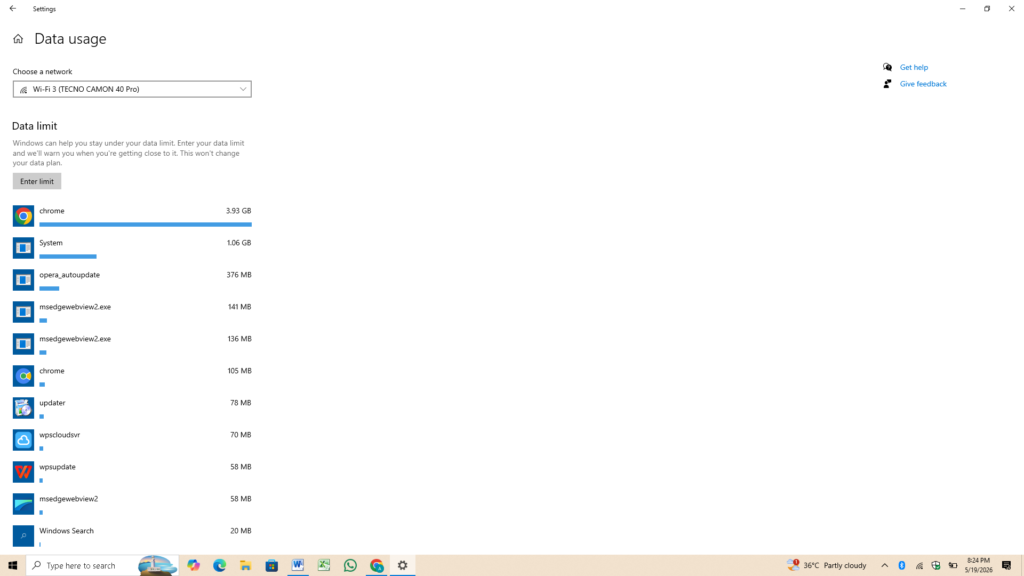
Microsoft also shares official steps to manage background apps in Windows.
How to Stop Background Apps on Mac
Mac handles background processes differently, but you have strong control through Activity Monitor and Login Items.
Method 1: Force Quit Apps
- Press Command + Option + Esc to open Force Quit.
- Select any app that’s frozen or unresponsive.
- Click “Force Quit”.
Method 2: Use Activity Monitor
Think of this as Mac’s equivalent of Task Manager.
- Open Finder → Applications → Utilities → Activity Monitor.
- Click the “CPU” or “Memory” tab to see what’s consuming the most resources.
- Select any process you want to stop and click the X button at the top left.
- Click “Quit” or “Force Quit”.
Method 3: Remove Login Items (Stop Apps Launching at Startup)
- Go to System Settings → General → Login Items & Extensions.
- Under “Open at Login”, select any app you don’t need at startup.
- Click the “–” (minus) button to remove it.
Method 4: Restrict Background Activity Per App (macOS Ventura and Later)
- Go to System Settings → Privacy & Security.
- Review sections like Location Services, Background App Refresh, and Bluetooth to fine-tune app permissions.
Which Apps Should You Keep Running in the Background?
Not all background activity is bad. Here are apps you generally want to keep active:
| App Type | Why Keep It Running |
|---|---|
| Messages / WhatsApp | So you don’t miss instant notifications |
| Google Maps / Apple Maps | Needs location for live navigation |
| Music / Spotify | So music continues when you switch apps |
| Health & Fitness Trackers | Needs constant access to sensors |
| Cloud Backup (Photos, Drive) | Syncs files when you’re on Wi-Fi |
| Antivirus / Security Apps | Needs to run continuously to protect you |
Everything else — games, shopping apps, social media, news apps — can safely be restricted without affecting your experience.
Quick-Reference Summary
| Platform | Fastest Fix | Best Long-Term Setting |
|---|---|---|
| Android | Swipe away in Recent Apps | Restrict battery usage per app |
| iPhone | Close via App Switcher | Turn off Background App Refresh |
| Windows | End Task in Task Manager | Disable Startup Apps |
| Mac | Force Quit (Cmd+Option+Esc) | Remove Login Items |
For more simple guides, visit our Tech Fixes Section.
Final Thoughts
The safest way to stop apps running in background is to disable only unnecessary apps, not system, security, or messaging apps.
You don’t need to live with a sluggish device or a battery that barely makes it through the day. Taking just 10 minutes to manage your background apps — especially disabling Background App Refresh on iPhone and removing startup programs on Windows — can make a noticeable difference in speed, battery life, and data usage.
Make it a habit to review your background apps every few months, especially after installing new software. Your device will thank you.
Found this guide helpful? Share it with someone whose phone is always at 10% battery.
Does Stopping background apps save battery?
Yes, it can help save battery, especially if some apps are ussing location, internet, or notification in the background.
Is it safe to stop apps running in background?
Yes, but avoid stopping important apps like messaging, email, security, and system apps.
Why do apps keep running after i close them?
Some apps restart in the background for notification, syncing, updates, or location services.
How do I know which app is drianning battery?
Check battery usage in your phone or windows setting to see which apps are using the most power.

Ahmed Durrani is a technology enthusiast and SEO learner who tests practical fixes for Android, iPhone, Windows, and Mac devices. His goal is to provide simple, beginner-friendly troubleshooting guides based on real-world testing and research.
This is so helpful for me.
This is so helpful for me. I was facing Some issues about my battery health. After reading this guide I do my best.